Magic Sheet Channel Offset Tool
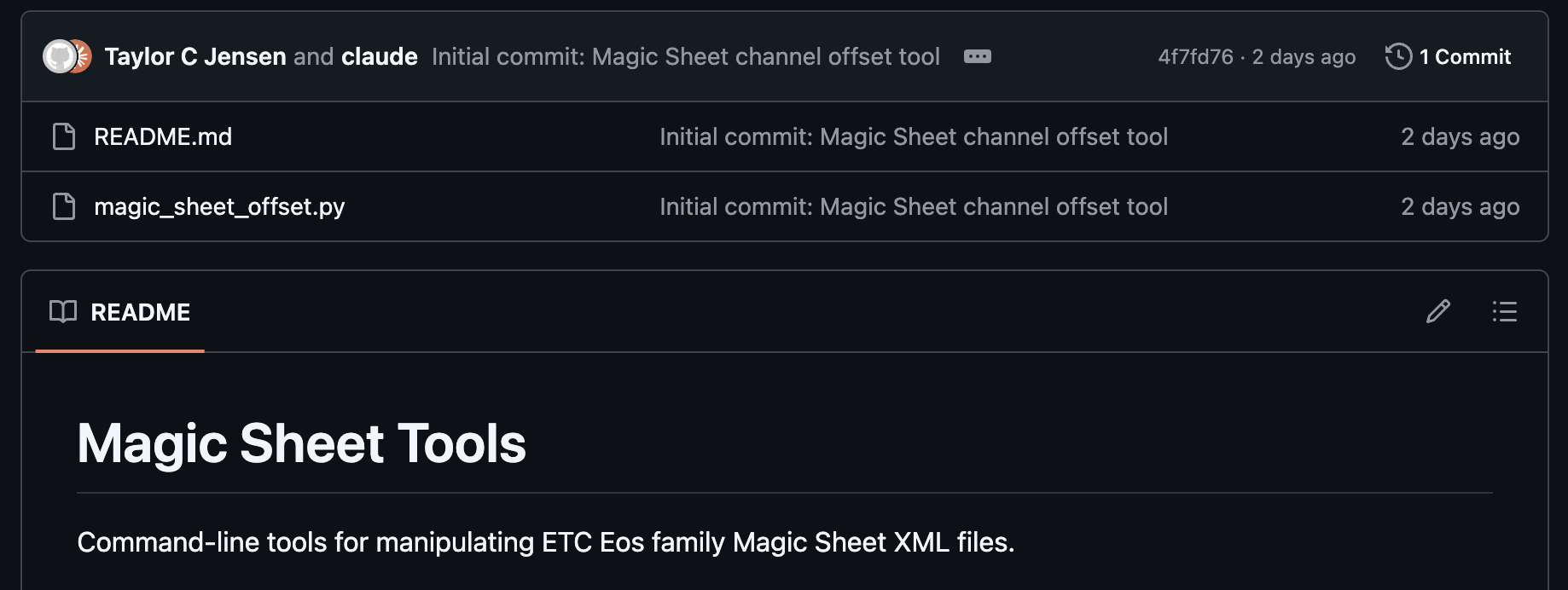
A command-line tool to offset channel numbers in Eos Magic Sheet XML files. Useful for merging shows or remapping channel ranges.
I recently needed to offset all channel numbers in a Magic Sheet by 4000 for a show merge. Doing this manually would be tedious and error-prone, so I wrote a Python script to automate it.
Download
The tool is available on GitHub: magic-sheet-tools
You’ll need Python 3.9 or later installed on your computer. No other dependencies are required.
Usage
The basic command adds 4000 to every channel number:
python3 magic_sheet_offset.py "My Magic Sheet.xml"
This creates a new file called My Magic Sheet_modified.xml in the same folder.
Options
You can customize the offset amount:
python3 magic_sheet_offset.py "My Magic Sheet.xml" --offset 5000
Or specify a different output directory:
python3 magic_sheet_offset.py "My Magic Sheet.xml" --output-dir ~/Desktop
Exporting a Magic Sheet from Eos
- Open the Magic Sheet tab
- Click the chevron/arrow button labeled
{Editor}on the right side - In the Magic Sheet Object Library panel, click the 4th tab (Settings/gear icon)
- Scroll to the Import/Export section at the bottom
- Click
{Save As Text File} - Save the XML file to your desired location
Importing Back to Eos
- Open the Magic Sheet tab
- Click the chevron/arrow button labeled
{Editor}on the right side - In the Magic Sheet Object Library panel, click the 4th tab (Settings/gear icon)
- Scroll to the Import/Export section at the bottom
- Click
{Import Text File} - Navigate to and select your modified XML file
Notes
- Only channel references are modified. Groups, subs, macros, and other target types stay unchanged.
- The original file is preserved. A new
_modifiedfile is created. - The tool handles both UTF-16 and UTF-8 encoded files automatically.
XML export preserves structure and channel numbers but loses embedded images and backgrounds. For complete Magic Sheet transfer with graphics intact, use show file merge instead.